


Smart Transfer: Copy My Data
0.00.00 Reviews
App Specs
- Version
- 1.5.0
- Updated On
- License
- Free
- Downloads
- 5,000,000+
- Developer
- DigiGen Apps
- Categories
- Productivity
- Platform
- Android
Screenshots
 Analysis by AppCompare
When I think about a phone switch, the part I most want to avoid is rebuilding the small things I rely on every day: contacts, photos, and calendar entries. Smart Transfer: Copy My Data is a free productivity app from DigiGen Apps that focuses on moving information between phones. Its appeal is straightforward: instead of treating a new device as a blank slate, I can use a transfer workflow to bring selected data along. That makes it most interesting when I’m changing phones and want a practical alternative to starting over by hand.
What the transfer approach changes
A phone-to-phone transfer is useful for more than saving a few taps. It can help preserve the familiar shape of daily use: people I contact, pictures I refer back to, and calendar details I don’t want to recreate from memory. In my view, the strongest reason to consider this app is that it puts those everyday items at the center of the move, rather than asking me to sort everything out after the new phone is already in use.
That focus also makes expectations important. A transfer app is not the same thing as a complete backup, and moving data does not necessarily mean every app, setting, login, or piece of content will behave exactly as it did before. I would treat Smart Transfer as a way to carry chosen information across, then check the new phone carefully before wiping or handing off the old one.
Preparing both phones for a calmer move
Before starting, I’d charge both devices, make sure I can unlock them, and connect them to the same Wi-Fi network. Those are simple preparations, but they prevent avoidable interruptions while the phones are communicating. I’d also decide in advance what matters most: for example, contacts and calendar entries may be more urgent than a large collection of photos that can be sorted later.
A useful detail in any selective transfer is to think about the destination phone’s available space before choosing content. If the old phone holds years of screenshots and duplicate images, selecting everything by default may not be the best move. I’d prioritize what I need immediately, then use the old device or another backup method to keep anything that does not fit the new phone’s purpose.
This is also a good time to make a short checklist of items to verify afterwards. I’d check a few important contacts, open recent photos, and look at upcoming calendar events. A quick, deliberate check is more dependable than assuming that a completed transfer means every item landed exactly where I expect.
A realistic phone-switching scenario
Imagine replacing a phone before a busy week. I need the new device ready for calls, appointments, and family photos, but I don’t want to spend the evening manually copying details. I can connect the old and new phones to the same Wi-Fi, choose the information I want to bring over, and let the transfer handle the basic move. Once it finishes, I can verify the next few appointments and key contacts before relying on the new phone outside the house.
Worth Reading Before You Choose

Flipboard Shows What News Apps Must Do Beyond the Feed

Switching to Android Auto Means Rethinking Your Driving Routine

Google Calendar Makes a Crowded Week Easier to Manage

Ludo King Makes the Most of the Minutes Between Plans

Baby Panda World Brings Quick Play to Modern Phones, but Its Game Library Feels Busy

ESPN’s Live Game View Makes Following Close Games Easier
That workflow is especially helpful when the new phone is a different platform, since moving to another operating system can make the handover feel less familiar. Still, I would not assume that an app installed on the old device will automatically arrive in a ready-to-use state on the new one. I’d plan to reinstall essential apps separately and sign in again where needed.
Where it fits beside built-in tools
Many people already have a transfer option built into their phone setup, or use a cloud account to restore information. Those methods can be convenient when both devices are within the same ecosystem and the account is already organized. Smart Transfer is worth considering when I want a direct, app-guided phone-to-phone process, particularly for a move between Android and iOS, but I would compare the available routes rather than assume one method covers every need.
The practical trade-off is control versus completeness. Selecting particular data can save time and avoid bringing over clutter, while a broader device migration may be better for someone who wants as much of the old setup as possible. For a cross-platform move, I’d check which information each method can handle before committing. If my priority is preserving a full device image or app-specific data, I’d use a dedicated backup or the platform’s own migration tools as well.
Who is likely to get the most from it
I’d recommend considering Smart Transfer if you’re changing phones, want a guided process, and mainly care about bringing personal information such as contacts, photos, or calendar events across. It may also suit someone who is not comfortable copying files manually, because a step-by-step flow can make a one-off task feel more manageable.
It is less suitable if you expect a perfect clone of every app, setting, password, and account session. People with a large amount of sensitive information should also take time to understand what they are selecting and to verify the result on the new device before deleting anything from the old one. For a phone that is already backed up and easy to restore through its usual ecosystem, the built-in route may be simpler.
Practical checks that reduce surprises
For a smoother session, I’d keep both phones close to the Wi-Fi router and avoid starting a large transfer when I need to leave soon. Network conditions can affect the experience, so a quiet period at home is a better choice than trying to move data in a hurry. If something seems to be missing, I’d first check whether it was selected, then look for it in the relevant app on the new device rather than immediately repeating the whole process.
I’d also keep the old phone untouched until I have checked the new one. This is a basic safeguard, but it matters: a transfer is only useful if the result is usable, and the old device remains the easiest fallback while I confirm what arrived. For important photographs or records, keeping a separate backup is a sensible extra layer rather than relying on any single transfer method.
Getting Started
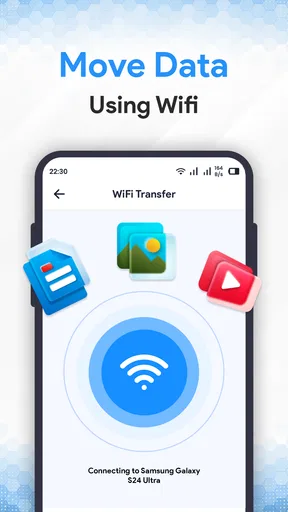
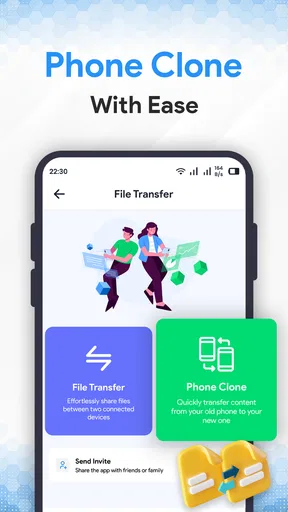
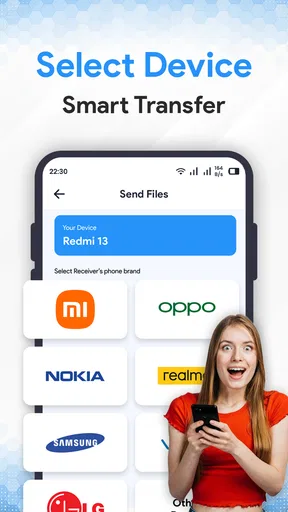
So, I decided to give Smart Transfer: Copy My Data a spin when I upgraded my phone last week. The setup was as smooth as butter. All you need is both your old and new devices connected to the same Wi-Fi network, and you’re good to go. The app guides you through every step, making it super user-friendly even for the least tech-savvy folks out there.
Key Features
Now, let’s dive into the nitty-gritty. What makes this app stand out?
- Cross-Platform Compatibility: Whether you’re making the jump from Android to iOS or the other way around, this app handles it seamlessly. No more headaches about compatibility issues.
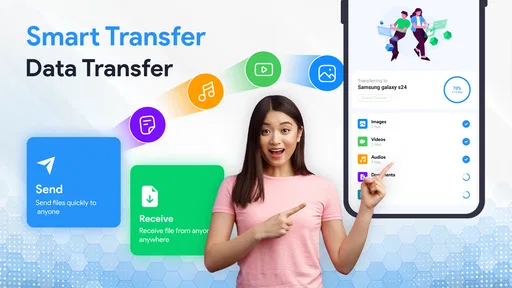
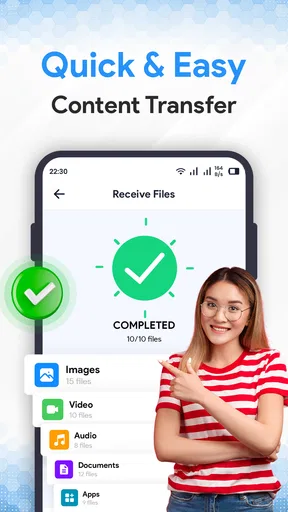
- Comprehensive Data Transfer: We’re talking about everything from your contacts and photos to your apps and even your calendar events. It’s like having a personal assistant who packs your digital bags for you.
- Secure and Private: The app assures that your data is transferred securely without ending up in the wrong hands. Privacy is a big deal, and Smart Transfer respects that.
My Experience
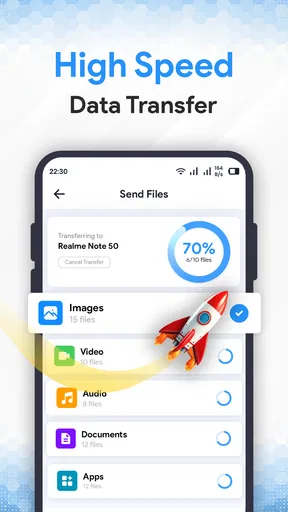
Transferring my data was surprisingly quick. I was bracing myself for a long wait, but the entire process took under 30 minutes. A couple of taps, a little patience, and voila! Everything was right where I wanted it on my new device.
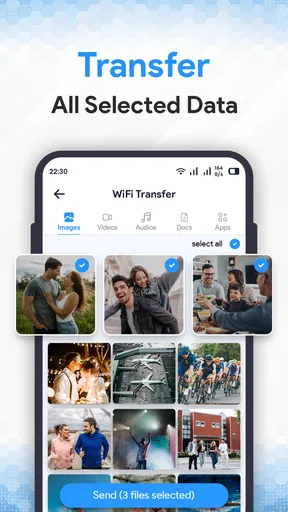
One thing I found particularly handy was the ability to select what data I wanted to transfer. Sometimes, I just don’t need to move every single meme or screenshot I’ve accumulated. Being able to choose saved me a lot of time and storage space.
Things to Keep in Mind
While Smart Transfer: Copy My Data is pretty impressive, there are a couple of things to keep in mind. First, both devices need to be on the same Wi-Fi network, and the transfer speed can vary depending on your connection. So, make sure your Wi-Fi is reliable to avoid any hiccups.
Also, remember that some apps might not transfer due to compatibility issues. It’s always a good idea to double-check what’s moved over and manually reinstall any missing apps.
Final Thoughts
All in all, Smart Transfer: Copy My Data is a fantastic tool for anyone looking to move their digital life from one device to another without losing a beat. It’s efficient, easy to use, and covers all the bases. Whether you’re a tech enthusiast or someone who just wants their stuff transferred with minimal fuss, this app is worth a shot.
If you’re planning to switch devices, do yourself a favor and download Smart Transfer. It’s like having a little digital guardian angel ensuring your data stays intact.
Cost, compatibility, and a sensible last check
The app is free to download, with optional in-app purchases listed at $14.99 to $44.99 per item. It is rated for Everyone, and its current version is 1.5.0, with Android 8.0 as the minimum operating system requirement. It has over a million installs, which gives it a substantial audience, though I would still judge it by whether its transfer flow matches my particular move rather than popularity alone.
My final recommendation is to use it as a focused helper, not as a promise that every corner of an old phone will be reproduced. The ability to move selected information is the useful part; the careful follow-up is what makes the change dependable. If you want a guided route for core personal data and are prepared to check the new phone afterwards, it is a reasonable option to try. If you need a complete device restoration, prefer the backup and migration tools designed for that job, and keep the old phone available until you’re sure the essentials are where they belong.
Pros
- Easy-to-use interface for all users.
- Supports multiple data types for transfer.
- Fast transfer speeds via Wi-Fi.
- Cross-platform compatibility.
- No data size limit for transfers.
Cons
- Requires both devices to be on same network.
- Limited support for older OS versions.
- May experience occasional connection drops.
- Ads can be intrusive during use.
- Lacks advanced file management features.
FAQs for Smart Transfer: Copy My Data
What is Smart Transfer: Copy My Data used for?
Smart Transfer: Copy My Data is an app designed to facilitate the seamless transfer of data between devices. It supports a wide range of data types including contacts, photos, videos, and messages. Whether switching to a new phone or just backing up data, this app simplifies the entire process.
Is Smart Transfer compatible with both Android and iOS devices?
Yes, Smart Transfer is compatible with both Android and iOS devices. This cross-platform functionality allows users to transfer data between different operating systems without hassle, making it an ideal choice for anyone switching from Android to iOS or vice versa.
How secure is the data transfer process with Smart Transfer?
Smart Transfer prioritizes user security by employing secure protocols to ensure that data is transferred safely. The app does not store or share your data with third parties, providing peace of mind that your personal information remains private during the transfer process.
Does Smart Transfer require an internet connection to transfer data?
No, Smart Transfer does not require an internet connection for data transfer. It utilizes direct device-to-device communication, which not only speeds up the process but also ensures that your data is not exposed to external networks, enhancing security and reliability.
Are there any limitations on the amount of data I can transfer with Smart Transfer?
While Smart Transfer does not impose a strict limit on the amount of data you can transfer, the speed and efficiency of the process may vary depending on the device's storage capacity and performance. It's advisable to ensure that the receiving device has enough storage space to accommodate the incoming data.


